
Softaculous installs WordPress for you in a couple of minutes. It creates the database, sets everything up and gives you a login to your new site.
Before You Start
Make sure your domain is pointing to AISweb (see How to Change Your Nameservers). You can install before the change finishes, but you won't see the site until it does.
Installing WordPress
- Log in to cPanel (see How to Log In to cPanel)
- In the Software section, click Softaculous Apps Installer
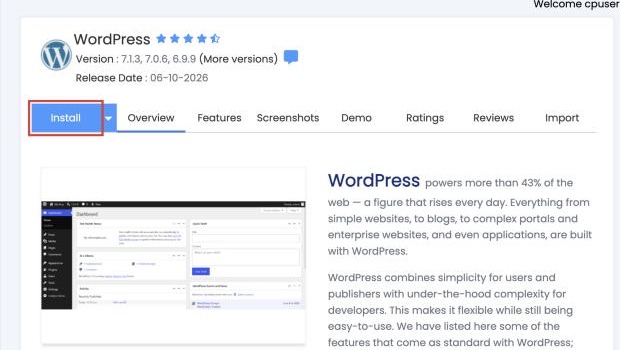
- Click WordPress, then Install
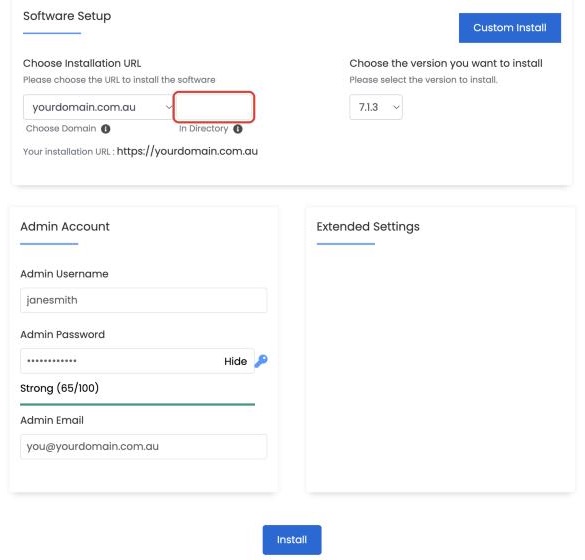
- Fill in the form:
- Choose Installation URL: pick https:// and your domain. Leave In Directory empty to put WordPress on your main address
- Site Name and Site Description: you can change these later
- Admin Username: don't use "admin". Choose something harder to guess
- Admin Password: use a strong password
- Admin Email: an address you check, for password resets and alerts
- Under Advanced Options, you can turn on automatic backups and updates
- Click Install
When it's finished you'll see links to your new site and its admin area. Your admin area is at https://yourdomain.com.au/wp-admin.
If an "index.html" or other files are already in public_html, Softaculous may warn you. Remove the old files first if you no longer need them.
Next Steps
- Choose a theme under Appearance > Themes
- Add pages under Pages > Add New
- Read How to Keep WordPress Updated and Secure
