
This guide shows you how to add your AISweb email account to the Mail app on a Mac.
What You'll Need
- Email address: your full email address
- Password: your email password
- Incoming and outgoing mail server:
mail.yourdomain.com.au
Replace yourdomain.com.au with your own domain.
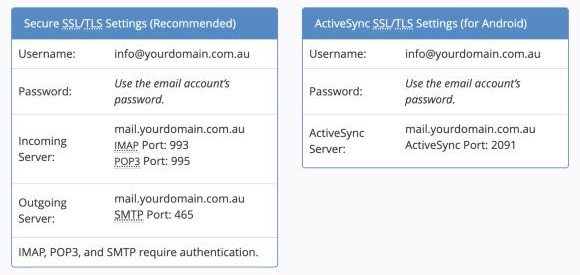
Adding Your Account
- Open Mail
- Click Mail in the menu bar, then Add Account
- Choose Other Mail Account and click Continue
- Enter your name, email address and password, then click Sign In
- If Mail asks for more details, enter:
- Account Type: IMAP
- Incoming Mail Server: mail.yourdomain.com.au
- Outgoing Mail Server: mail.yourdomain.com.au
- User Name: your full email address
- Password: your email password
- Click Sign In
- Make sure Mail is ticked and click Done
Checking the Port Settings
Mail usually picks the right settings automatically. If you have trouble:
- Go to Mail > Settings > Accounts and select your account
- Click Server Settings
- Untick Automatically manage connection settings for both servers
- Set Incoming to port 993 with Use TLS/SSL ticked
- Set Outgoing to port 465 with Use TLS/SSL ticked
- Click Save
Troubleshooting
- Test your password by logging in to webmail
- Make sure the user name is your full email address, not just the part before the @
- If sending doesn't work on 465, try port 587
Need help? Contact our support team.
