
An autoresponder sends an automatic reply to anyone who emails you. It's perfect for out-of-office messages, holidays, or letting customers know you've received their enquiry.
Opening Autoresponders
- Log in to cPanel (see How to Log In to cPanel)
- In the Email section, click Autoresponders
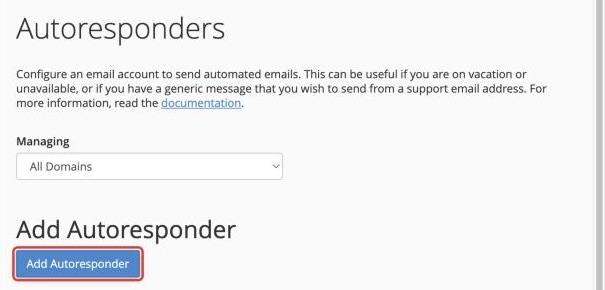
Creating an Autoresponder
- Click Add Autoresponder
- Fill in the settings:
- Character Set: leave as utf-8
- Interval: how many hours to wait before replying to the same person again. 24 is a good choice
- Email: the part of the address before the @, then choose the domain
- From: the name people will see the reply come from
- Subject: for example "Out of office" or "Thanks for getting in touch"
- Body: your message
- Choose when it starts and stops:
- Start: Immediately, or pick a date and time
- Stop: Never, or pick a date and time
- Click Create
Example Messages
Out of Office
Subject: Out of office until [date]
Thanks for your email. I'm out of the office from [start date] to [end date] and won't be checking email often. I'll get back to you as soon as I can after I return. For anything urgent, please contact [name] at [email or phone].
Enquiry Received
Subject: We've received your enquiry
Thanks for getting in touch. We've received your message and will reply as soon as possible. In the meantime, you might find the answer in our knowledgebase.
Changing or Removing an Autoresponder
- Go to Autoresponders in cPanel
- Find the autoresponder in the list
- Click Edit to change it, or Delete to remove it
Tips
- Use an interval: 24 hours stops the same person getting the same reply over and over
- Set a stop date: so you don't forget to turn your out-of-office off
- Keep it short: say when you'll be back and who to contact instead
- Avoid mailing lists: autoresponders on addresses that receive mailing lists can annoy everyone on the list
Autoresponder Not Working?
- Check the start and stop times
- Check it's set up on the right email address
- Remember it won't reply to the same sender again until the interval has passed
- Make sure emails are actually arriving in the account
Need help? Contact our support team.
