
Your AISweb hosting lets you create professional email addresses on your own domain, such as info@yourdomain.com.au.
Step 1: Open Email Accounts
- Log in to cPanel (see How to Log In to cPanel)
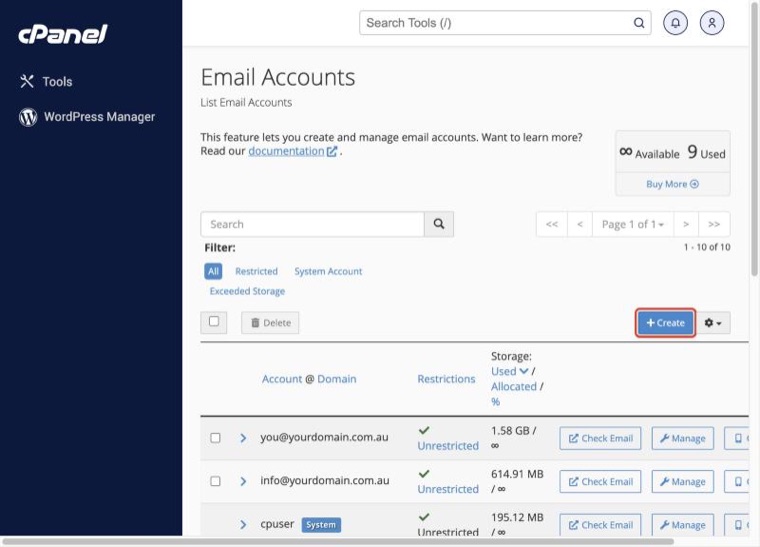
- In the Email section, click Email Accounts
Step 2: Create the Account
- Click + Create
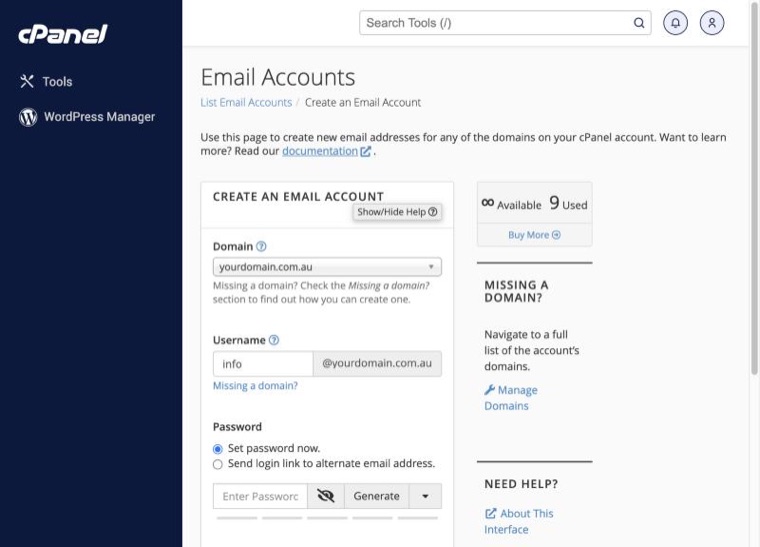
- If you have more than one domain, choose the right one from the Domain list
- Enter the Username, the part before the @ (for example info, sales or yourname)
- Enter a strong Password, or click Generate to create one
- Under Storage Space, set a limit or leave it as Unlimited
- Click + Create
Write the password down somewhere safe. You'll need it to set up the account on your phone and computer.
Step 3: Start Using Your Email
- Webmail: go to yourdomain.com.au/webmail (see How to Access Webmail)
- Phone or tablet: see How to Set Up Email on Your Phone or Tablet
- Outlook: see How to Set Up Email in Outlook
- Apple Mail: see How to Set Up Email in Apple Mail on a Mac
Email Settings
Use these settings in any email app:
- Username: your full email address
- Password: the password you just created
- Incoming server (IMAP):
mail.yourdomain.com.au, port 993, SSL/TLS - Outgoing server (SMTP):
mail.yourdomain.com.au, port 465, SSL/TLS, with authentication turned on
Tips
- Use a different strong password for each email account
- Set up SPF, DKIM and DMARC so your emails don't end up in spam
- Use forwarders for addresses that just need to pass mail on, rather than full accounts
- Use an autoresponder when you're away
If you have any trouble, our support team is here 24/7.
