
Your AISweb hosting includes Apache SpamAssassin, which checks incoming email and marks anything that looks like spam. You can change how strict it is and choose what happens to spam.
Opening Spam Filters
- Log in to cPanel (see How to Log In to cPanel)
- In the Email section, click Spam Filters
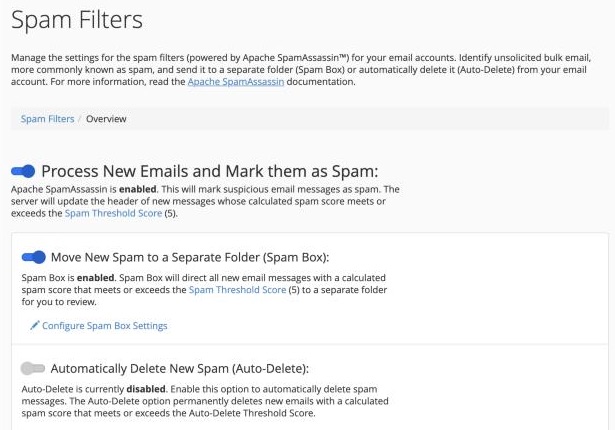
Turning Spam Filtering On
Make sure Process New Emails and Mark them as Spam is turned on. Messages that look like spam will then have SPAM added to the start of their subject line.
Moving Spam Out of Your Inbox
Turn on Move New Spam to a Separate Folder (Spam Box). Spam will then go to a folder called spam instead of your inbox. You can look through it in webmail or your email app.
Deleting Spam Automatically
Turn on Automatically Delete New Spam (Auto-Delete) and choose a score. Email with a score at or above that number is deleted straight away.
Changing How Strict the Filter Is
Every email gets a spam score. The higher the score, the more likely it's spam.
- Under Spam Threshold Score, click Configure Spam Threshold Score
- Choose a score. The default is 5
- Lower numbers, like 3 or 4, catch more spam but may catch some real email too
- Higher numbers, like 6 or 8, let more through but are less likely to catch real email
- Click Update Scoring Options
Always Allowing or Always Blocking a Sender
Under Additional Configurations:
- Edit Spam Allowlist Settings: add addresses or domains whose email should never be marked as spam, for example
someone@example.comor*@example.com - Edit Spam Blocklist Settings: add addresses or domains whose email should always be marked as spam
Click Update Allowlist or Update Blocklist to save.
Testing Your Changes
- Keep an eye on your inbox for a few days
- Check the spam folder for real emails that were caught by mistake
- Adjust the score if needed
For more control, such as moving email from certain senders into a folder, see How to Create Email Filters.
Still getting too much spam? Contact our support team and we'll take a look.
