
This guide shows you how to add your AISweb email account to an iPhone, iPad or Android device.
What You'll Need
- Email address: your full email address, for example you@yourdomain.com.au
- Password: your email account password
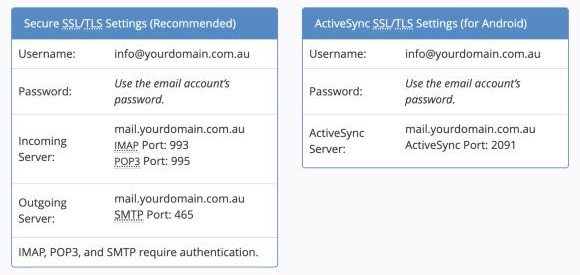
- Incoming server (IMAP):
mail.yourdomain.com.au, port 993, SSL/TLS - Outgoing server (SMTP):
mail.yourdomain.com.au, port 465, SSL/TLS
Replace yourdomain.com.au with your own domain.
iPhone or iPad
- Open Settings
- Tap Apps, then Mail (on older versions, tap Mail directly)
- Tap Mail Accounts, then Add Account
- Tap Other, then Add Mail Account
- Enter your name, email address, password and a description, then tap Next
- Make sure IMAP is selected at the top
- Under Incoming Mail Server, enter:
- Host Name: mail.yourdomain.com.au
- User Name: your full email address
- Password: your email password
- Under Outgoing Mail Server, enter the same host name, user name and password
- Tap Next and wait while your details are checked
- Make sure Mail is turned on and tap Save
Android (Gmail App)
- Open the Gmail app
- Tap your profile picture, then Add another account
- Choose Other
- Enter your email address and tap Next
- Choose Personal (IMAP)
- Enter your password and tap Next
- For the incoming server, enter:
- Username: your full email address
- Server: mail.yourdomain.com.au
- Port: 993
- Security type: SSL/TLS
- Tap Next
- For the outgoing server, enter:
- Require sign-in: on
- Username: your full email address
- SMTP server: mail.yourdomain.com.au
- Port: 465
- Security type: SSL/TLS
- Tap Next, choose your sync options, then give the account a name and tap Next
Other Android email apps work the same way. Look for an option to add an IMAP account.
Troubleshooting
- Check your email address and password are right. Log in to webmail to test them
- Make sure you used mail. followed by your own domain, not the word "yourdomain"
- Double-check the port numbers and security type
- If sending fails on port 465, try port 587 with STARTTLS
- Make sure your phone has an internet connection
Still having trouble? Contact our support team. We're here 24/7.
