
Two-factor authentication (2FA) means logging in to cPanel needs a code from your phone as well as your password.
What You'll Need
An authenticator app on your phone, such as Google Authenticator, Microsoft Authenticator or Authy.
Turning It On
- Log in to cPanel (see How to Log In to cPanel)
- In the Security section, click Two-Factor Authentication
- Click Set Up Two-Factor Authentication
- Scan the QR code with your authenticator app
- Enter the 6-digit code from the app in Security Code
- Click Configure Two-Factor Authentication
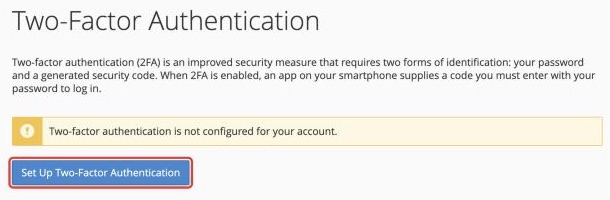
From now on, logging in to cPanel directly will ask for a code from your app.
Logging in to cPanel through the Client Area skips the cPanel password and code, so use a strong, unique password for your Client Area too.
Lost Your Phone?
Log in to cPanel through the Client Area, go to Two-Factor Authentication, click Remove, then set it up again with your new phone.
