
File Manager lets you upload, edit, move and delete your website files in your web browser, without any extra software.
Opening File Manager
- Log in to cPanel (see How to Log In to cPanel)
- In the Files section, click File Manager
Your website's main folder is public_html. Double-click a folder to open it.
Everyday Tasks
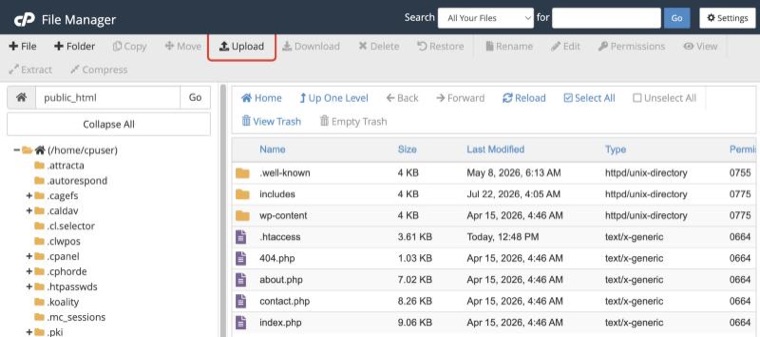
Upload Files
- Open the folder you want to upload to
- Click Upload and drag your files onto the page
Create a File or Folder
Click + File or + Folder, enter a name and click Create.
Edit a File
- Click the file once to select it
- Click Edit in the toolbar
- Make your changes and click Save Changes
Before editing an important file like .htaccess or wp-config.php, right-click it and choose Copy to make a backup copy first.
Move, Copy or Rename
Right-click the file or folder and choose Move, Copy or Rename.
Zip and Unzip
- To unzip, right-click a .zip file and choose Extract
- To zip, select the files, right-click and choose Compress
Delete Files
Select the files and click Delete. Deleted files go to the Trash unless you tick Skip the trash and permanently delete the files.
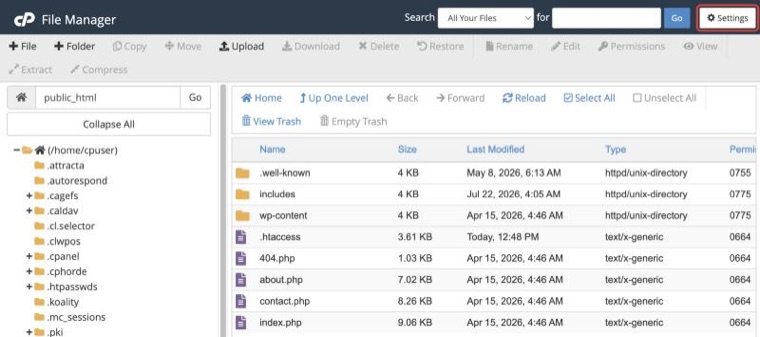
Showing Hidden Files
Files that start with a dot, like .htaccess, are hidden by default.
- Click Settings at the top right
- Tick Show Hidden Files (dotfiles)
- Click Save
Restoring Something You Deleted
- Click View Trash to restore files you deleted recently
- For anything older, use JetBackup. See How to Restore Files With JetBackup
