
Many websites, including WordPress, store their content in a MySQL database. The Database Wizard sets one up step by step.
If you install WordPress or another app with Softaculous, the database is created for you automatically.
Using the Database Wizard
- Log in to cPanel (see How to Log In to cPanel)
- In the Databases section, click Database Wizard
- Step 1: enter a name for the database and click Next Step
- Step 2: enter a username and a strong password (or click Password Generator), then click Create User
- Step 3: tick ALL PRIVILEGES and click Next Step
- Step 4: you're done
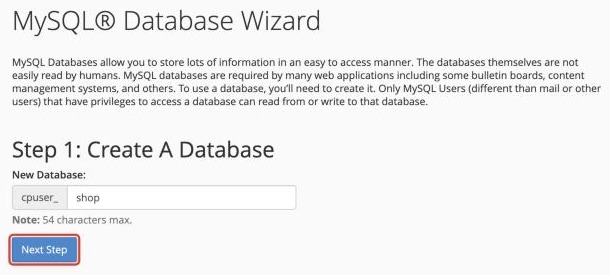
cPanel adds your cPanel username to the start of the database and user names, for example cpuser_shop. Use these full names in your website's settings.
Settings for Your Website
- Database name: the full name, for example cpuser_shop
- Username: the full user name, for example cpuser_shopuser
- Password: the password you chose
- Host:
localhost
Managing Databases
In Manage My Databases (under Databases in cPanel) you can:
- See all your databases and their sizes
- Change a database user's password
- Add a user to a database
- Delete databases you no longer need
To look inside a database, import or export data, see How to Use phpMyAdmin.
