
A redirect sends visitors from one address to another. Use it when a page has moved, or to send an extra domain to your main website.
Creating a Redirect
- Log in to cPanel (see How to Log In to cPanel)
- In the Domains section, click Redirects
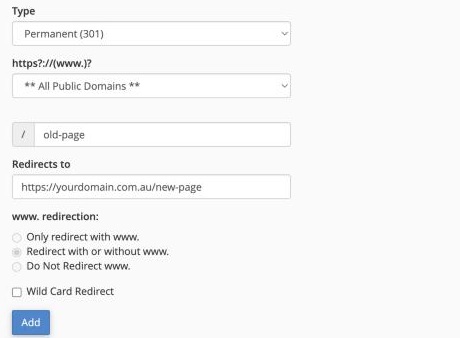
- Choose the Type:
- Permanent (301): the page has moved for good. Best for search engines
- Temporary (302): the move is only for now
- Choose the domain to redirect from. Choose All Public Domains to cover all of them
- In the box after the domain, enter the page to redirect, for example
old-page. Leave it blank to redirect the whole domain - In Redirects to, enter the full new address, for example
https://yourdomain.com.au/new-page - Choose a www. redirection option. Redirect with or without www. suits most people
- Click Add
Sending Every Visitor to HTTPS
To make sure everyone uses the secure version of your site, see Free SSL Certificates and HTTPS.
Removing a Redirect
Scroll down to Current Redirects and click Delete next to the redirect.
Using WordPress? Redirect plugins like Redirection are often easier for page-by-page redirects.
