
Your cPanel username and password already work for FTP. You can also create separate FTP accounts, for example to give a web designer access to just one folder.
Creating an FTP Account
- Log in to cPanel (see How to Log In to cPanel)
- In the Files section, click FTP Accounts
- Fill in the form:
- Log In: a name for the account, for example designer
- Domain: choose your domain
- Password: enter a strong password, or click Generate
- Directory: the folder this account can see. Change it to
public_htmlfor full website access, or a subfolder to limit access - Quota: a storage limit, or Unlimited
- Click Create FTP Account
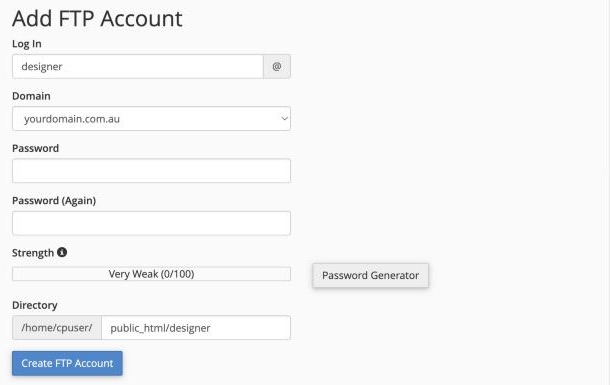
The full username is the login and domain together, for example designer@yourdomain.com.au.
Connection Details
Click Configure FTP Client next to the account in the list to see its settings. Generally:
- Server:
ftp.yourdomain.com.au - Username: the full FTP username, such as designer@yourdomain.com.au
- Port: 21
- Encryption: use explicit FTP over TLS (also called FTPES) to keep the password safe
See How to Upload Your Website Files for step-by-step FileZilla instructions.
Removing an FTP Account
When someone no longer needs access, click Delete next to their account in FTP Accounts. Choose Delete FTP Account to keep the files they uploaded.
