
Once your hosting is set up, you need to upload your website files so people can see your site. Here are two ways to do it.
Using WordPress? You don't need to upload anything. See How to Install WordPress With Softaculous.
Method 1: cPanel File Manager (Easiest)
File Manager works in your browser, so you don't need any extra software.
- Log in to cPanel (see How to Log In to cPanel)
- In the Files section, click File Manager
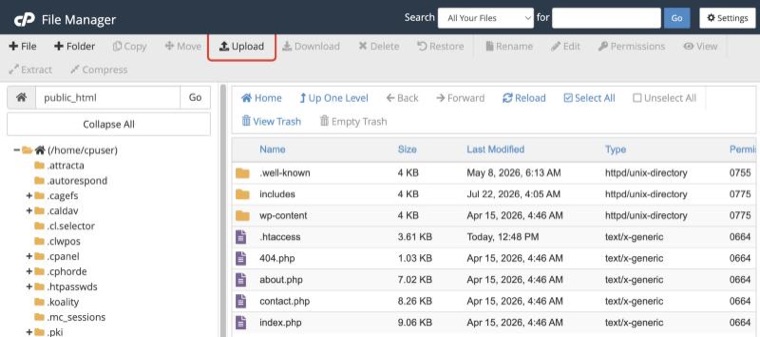
- Open the public_html folder. This is your website's main folder
- Click Upload in the toolbar
- Drag your files onto the page, or click Select File
- Wait for the upload bar to reach 100%, then click Go Back to "/home/username/public_html"
Uploading lots of files? Put them in a .zip file, upload that, then right-click it in File Manager and choose Extract. It's much quicker.
Method 2: FTP (Best for Large Sites)
FTP is better for big websites or lots of files. We recommend FileZilla, which is free.
Connection Details
- Host:
ftp.yourdomain.com.au, or your server name from your welcome email - Username: your cPanel username, or an FTP account you've created (see How to Create an FTP Account)
- Password: the matching password
- Port: 21
Upload With FileZilla
- Open FileZilla and go to File > Site Manager
- Click New Site and enter the host, username and password
- Set Encryption to Require explicit FTP over TLS so your password and files are sent securely
- Click Connect
- On the right (your hosting), open public_html
- On the left (your computer), find your website files
- Drag the files from left to right
Where Your Files Go
- public_html: your main website
- public_html/index.html or index.php: your home page
- Folders for extra domains and subdomains are shown in cPanel's Domains page
File Permissions
Most files should be set to 644 and folders to 755. You can change these in File Manager (right-click > Change Permissions) or in FileZilla (right-click > File permissions).
Common Problems
- Can't connect with FTP? Check the host, username and password. If you're on a work network, its firewall may block FTP, so try from home or use File Manager
- Website not showing? Make sure your home page is called index.html or index.php and is directly inside public_html, not in a subfolder
- Still seeing an old page? Your domain may still be pointing somewhere else. See How to Change Your Nameservers
Need a hand? Our support team is here 24/7.
